What's New in CCC® Estimating for July 2023
Click here to view the What’s New release notes for CCC® Estimating.
Note: The availability of the features listed below may vary based on the products licensed to your company.
CCCONE.COM - Web Estimating
Insurance Change Request
The ability to view, accept, or reject an insurance change request is now available on cccone.com. When the insurance company sends a change request to the shop from an insurance review, the shop can review changes and:
- Accept insurance changes as a newly locked supplement or
- Reject insurance changes and manually create their own supplement
Change requests from the insurance company may propose changes to vehicle information, estimate lines, and/or rates. When accepting the change request, a supplement is automatically created and locked. All insurance proposed changes are applied to the supplement.
To accept or reject a change request on cccone.com:
Navigate to the Workfiles search page.
Open a workfile with Change request displayed in the Updates column.
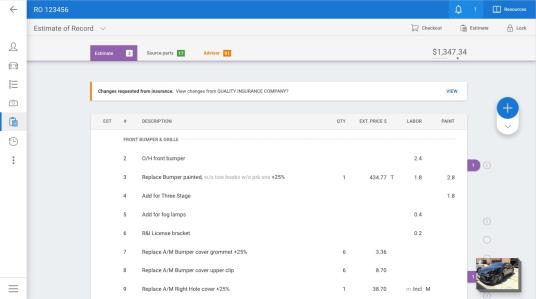
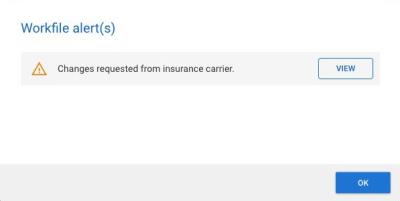
Click View on the change request alert or the change request banner displayed on the estimate screen.
After reviewing proposed changes, select Accept Changes and Lock or Reject changes and edit estimate.
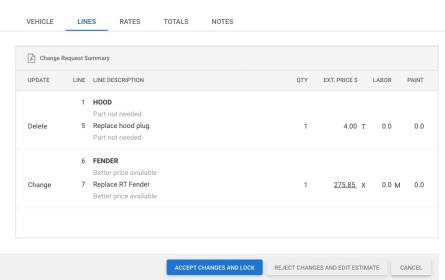
The shop can preview the proposed supplement before accepting the change request. Simply click the Change Request Summary button in the toolbar on the change request screen. A preview of the supplement with summary is displayed with all of the insurance changes applied.
Note:
- This functionality is only available to shops that can lock estimates on cccone.com.
- Only users with the “Create and edit workfiles” permission can accept or reject an insurance change request.
Save Notes & Attachments on Closed Workfiles
Shops without Repair Workflow have the ability to close workfiles on cccone.com. Now users with appropriate edit permission can also add notes and attachments to closed workfiles on cccone.com.
To access this feature:
- Search for and select a closed workfile in the Workfiles dashboard.
- Select Edit.
- Click OK to close the Workfile alert(s) pop-up.
- To add photos or other attachments, go to the Photos screen and select Add photo.
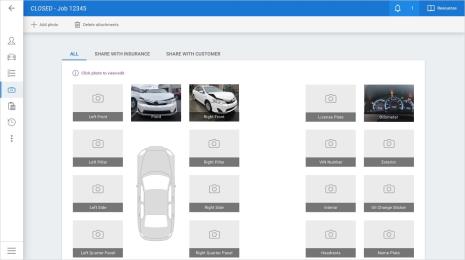
- To add a note, go to the Notes screen and select Add note.
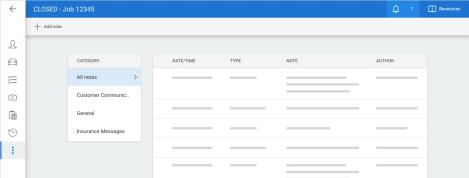
In addition to adding photos to the workfile, you can also delete or edit details on existing photos and attachments.
Note:
- User must have the following security permission to update closed workfiles: Edit closed workfiles
- Currently this functionality is only available to shops without Repair Workflow.
Attachments: Send to Insurance Now
Shops can now send attachments to insurance outside of locking a supplement. When additional photos or PDF documents have been added to the workfile after locking the estimate, the shop may send the attachments to the insurance company without creating and locking a supplement.
To access this feature:
Open an assignment with a locked estimate or supplement.
Add at least one photo or PDF attachment to the workfile.
Select Send to insurance now.
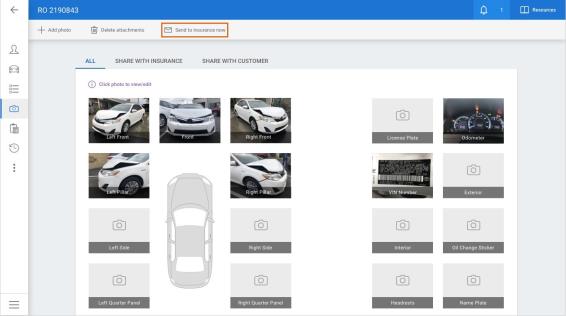
Select the attachments you want to send, then click Send.
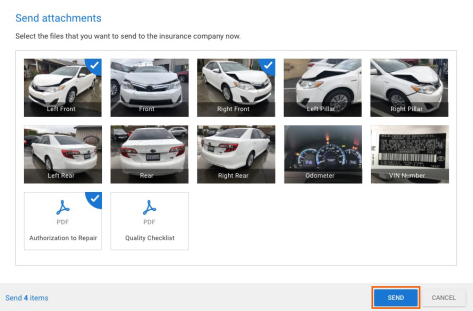
Selected attachments are sent to the insurance company. Once all attachments marked to send to insurance have been communicated, the Send to insurance now button is disabled.
Note:
- Send to insurance now is only available to users with the following security permission: Create and edit workfiles
- Action is only available on workfiles that have already been communicated to insurance.
- Action is only available when at least one attachment is marked to share with insurance but has not yet been sent to the insurance company.
Create Claim Office from Assignment
Users now have the ability to create a claim office profile when opening a new assignment and a profile does not exist. If the user has appropriate permission, they will now receive a prompt to create the claim office profile when the new assignment is first opened.
To access this feature:
Open a new assignment workfile.
When prompted to create the claim office profile, click Yes.
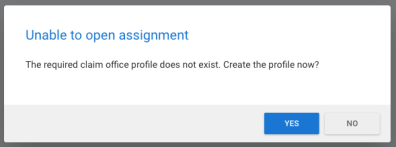
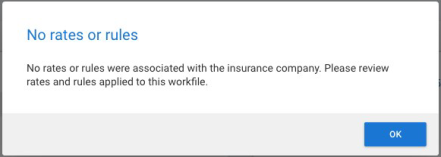
The claim office profile is created for the repair facility location and the workfile is opened. Corresponding rates and rules defined for the insurance company are automatically applied to the workfile. If rates or rules were not configured for the insurance company, system defaults are applied and a prompt is displayed informing the user to review rates and/ or rules.
Note:
- This feature is only available to shops enabled with web claim office profiles, web rate profiles, and web rules.
- Only users with the following security permission may create claim offices from assignments: Edit claim office profiles or Create claim office profile from assignment.
- User must also have permission to create and edit workfiles.
Send to Insurance (Post Lock)
Shops can now send workfiles that have not been communicated to the insurance company after the estimate is locked.
To access this feature:
Open a manually created workfile with a locked estimate.
Go to the Estimate screen.
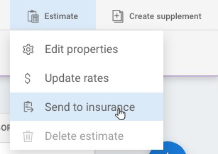
Select the Estimate menu, then select Send to insurance.
OR
Open a manually created workfile with a locked estimate.
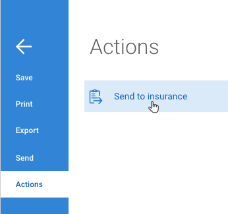
Click the workfile menu button in the lower left corner of the screen.
Select Actions, then select Send to insurance.
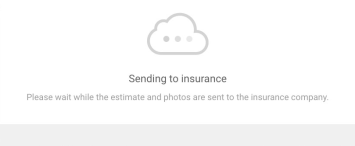
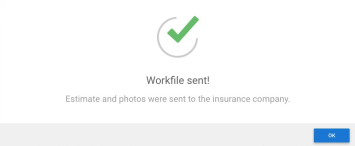
When you click OK in the confirmation prompt, the workfile is sent to the insurance company including all locked estimate versions and photos.
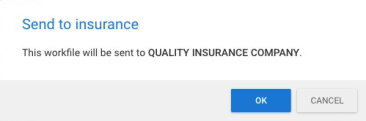
Once successfully sent, the workfile is converted to a communicating file. All future supplements, communicated events, and photos are automatically sent to insurance when a supplement is locked.
Note:
- Send to insurance action is only available to users with the following security permission: Create and edit workfiles
- Shop must have a DRP relationship with the insurance company on the workfile.
- Workfile must not already have been communicated to insurance.
- Insurance company must be configured to allow sending workfiles without an assignment.
Part Price Changes
Part price changes can now be applied to the estimate in cccone.com for shops without repair order management features. Part price changes are detected when part price EMS or part provider XML files are imported to the CCC ONE desktop app. When opening a workfile with part price changes, an alert is displayed informing you that there are part price changes to review.
Part changes may include the following:
- Updated part type.
- Updated part price.
- Updated part number.
- New and/ or deleted parts due to recycled assembly sourced alternative.
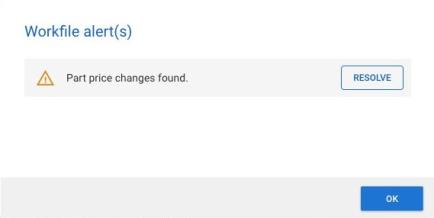
You can apply some or all of the part price changes to the estimate.
- From the workfile search screen, open a workfile with Part Changes displayed in the Updates column.
- When the workfile opens, click the Resolve button on the part change alert.
- Check the box to either Apply or Discard the part change listed.
- To update the estimate, click the OK button.
CCC Amplify
Shops enabled with CCC Amplify now have the ability to create and publish a professional website via cccone.com. This feature allows shops to easily build a beautiful website from pre-defined templates. Information on the website is automatically populated with details from the shop's Network Profile. When information in the shop's Network Profile is changed, information on the public website is updated automatically.
To access this feature:
Go to Settings on cccone.com.
Select Public Website.
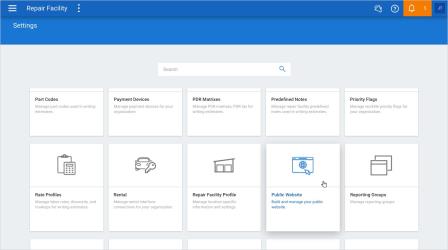
From Public Website settings in cccone.com, the shop may:
Change the pre-defined template applied to their website.
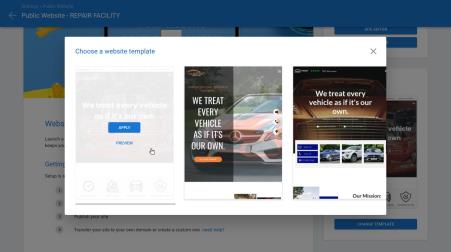
Launch the site editor to preview and customize their website.
Publish and unpublish their website.
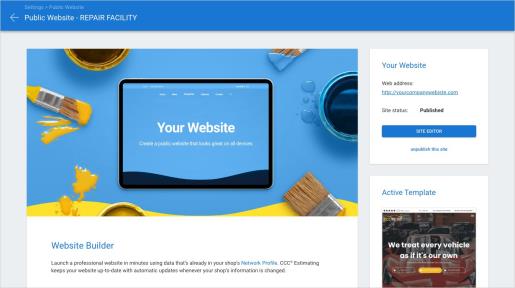
Note:
- This feature is only available to shops licensed with CCC Amplify.
- Only users with the following security permission may access Public Website settings: Edit repair facility profiles.
CCC® Engage – Repair Cost Prediction
Repair Cost Prediction is an AI based feature that provides an instant repair cost range for Carwise® Online Estimate requests to your repair facility. CCC's advanced AI reviews photos submitted by consumers to determine a potential repair cost range. If AI can determine damage from provided images, a repair cost range is presented to the consumer. From there the consumer can either request a detailed online estimate or schedule a repair appointment.
To enable Repair Cost Prediction:
Go to Settings on cccone.com.
Select Carwise Profile.
Set the switch on Provide instant repair cost range to Enabled.

Check the box on the Terms of Use screen and click I Accept.
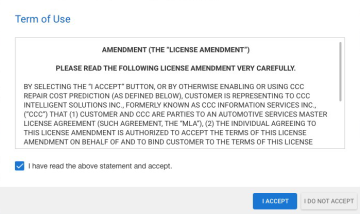
Note:
- Repair Cost Prediction is only available to shops with CCC® Engage + CCC® Photo Estimate.
- Users must have the following security permission to access the Carwise Profile and enable Repair Cost Prediction: Edit repair facility profile.
- Online photo estimate with Carwise must be set to Enabled within the Carwise profile first in order to enable Repair Cost Prediction.
Vendor Settings Enhancements
Various improvements have been made to vendor management features within cccone.com.
Add Vendor
When adding a new vendor, you must now select which type of vendor you want to add:
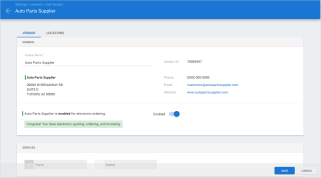
- Part vendor - This is a vendor from the CCC Parts network. This includes both electronic vendors and vendor from the ARO database. Part vendors used when writing estimates (Source Parts and Shopping) and ordering parts (Checkout, electronic ordering, and manual parts orders).
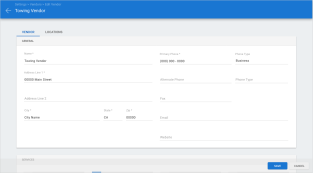
- Other vendor - This is a manual vendor. This includes sublet, towing, rental, and other vendors.
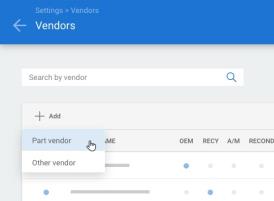
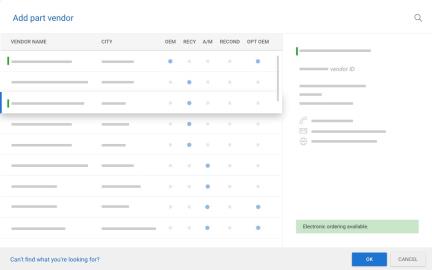
Search CCC Parts Vendors
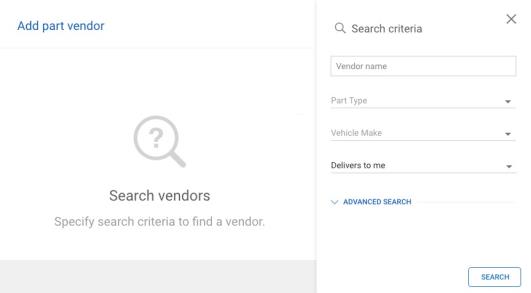
Enhanced search capability now exists when adding a new vendor from the CCC Parts network. In addition to vendor name, you can also search by part type, vehicle make, and delivery to your shop location. With advanced search criteria you can narrow down your results even further by ordering capability, vendor ID, phone number, and address.
If a part vendor is not found within the CCC Parts network, the shop may create the vendor manually. Prior to saving the vendor record another search against the CCC Parts network vendors is automatically performed. This will help insure that the shop activates vendors within the CCC Parts network when available.
Edit Vendor
Address, phone, email, and website information will no longer be editable on vendors in the CCC Parts network. This information is maintained by CCC. Shops may continue to edit the Display Name on electronic vendors and admin information on other vendors.
In addition to admin information, CCC maintains the part types supported by vendors in the CCC Parts network. Shops will no longer be able to edit this information for vendors in the CCC Parts network.
Lastly, when configuring a CCC Parts network vendor as a preferred vendor, vehicle make information is limited to the makes the vendor supports.
|
|
|
Note:
- To access vendor management features, users must have the following security permission: Create, Search, View, Edit, and Deactivate Vendors.
- At this time, preferred vendor configuration is only available to shops with Repair Management functionality.
CCC ONE Desktop Release 38
Updated Precedence for Workfile Warnings
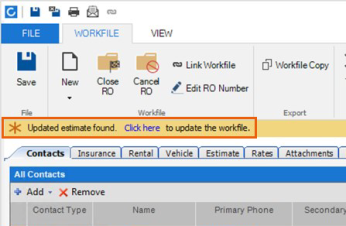
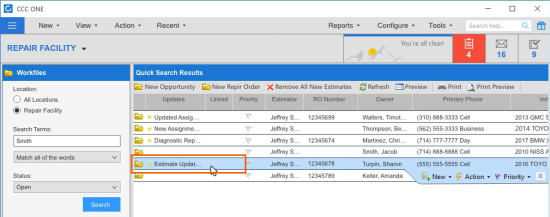
Display precedence of workfile warnings has been updated. Previously, the part price change warning took precedence over all other warnings when part price changes were detected on the workfile. Now, for shops enabled with Repair Workflow, the updated estimate warning will take precedence over all other warnings when an updated EMS estimate import is detected.
Updated What's New Link
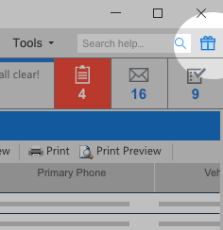
The What’s New link, represented by a Gift icon, now launches to the Recent Releases page on Zendesk. This page shows all recent releases of CCC ONE for Repair Facilities on desktop, mobile, and web platforms. Releases are listed in date order, most recent releases listed first.
To access this feature:
- Login to CCCONE RF Desktop.
- Click What’s New.
- View Recent Releases articles hosted on Zendesk.
Repair Methods: Open in Browser link
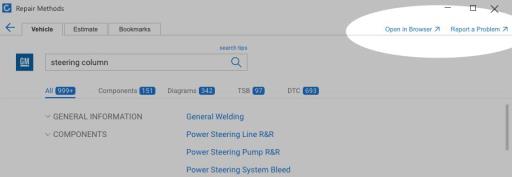
Repair Methods may now be loaded in the default web browser. In the event display issues are encountered within the embedded browser in CCC ONE, users can still view full content in their default browser.
To access this feature:
- Login to CCCONE RF Desktop.
- Open a Workfile.
- Access Repair Methods.
- Click Open in Browser.
Diagnostics Dashboard Update
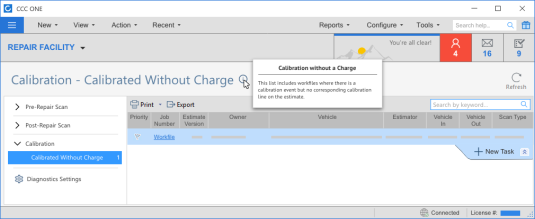
The calibration queue in the Diagnostics dashboard was renamed for clarity. "Scanned without charge" is now called "Calibrated without charge". This was a label change only. The logic to populate this queue remains unchanged.
To access this feature:
- Login to CCCONE RF Desktop.
- Select the menu button in the upper left-hand corner.
- Select Diagnostics, then select Calibration.
Note:
- This feature is only available to shops licensed with CCC Diagnostics.
- Users must have the following permission to access the Diagnostics dashboard.
Quickly find your CCC Team members. Go to http://www.cccis.com/collision-repairers/team/ and follow the screen instructions.
