What's New in CCC® Estimating for May 2023
Click here to view the What’s New release notes for CCC ONE® Estimating.
Note: The availability of the features listed below may vary based on the products licensed to your company.
CCCONE.COM - Web Estimating
The ability to send workfile reports via email has been added to cccone.com. Users that can view or edit workfiles may send selected workfile reports to contacts on the workfile.
To send workfile reports via email follow these steps:
- Open a workfile on cccone.com.
- Select the menu button in the lower left corner of the screen.
- When the backstage menu is displayed, select Send.
- Select one or more of the reports listed, then click OK.
- In the Send email screen, select the To: Contact you want to email.
- Enter a Subject and Message text, then click Send.
Your message will be sent to the email address associated with the selected To: Contact. Selected reports are included as PDF attachments on the email message.
Note:
- Messages are sent from mail.carwise.com in the name of the logged in user. The logged in user must have an email address specified in My Account settings to send email from cccone.com.
- Messages can only be sent to contacts on the workfile that have an email address.
- Recording/logging messages sent to workfile history is not supported at this time. This functionality is on the backlog for future implementation.
- Reply-to functionality by message recipient is not supported at this time. This functionality will be implemented in the near term. Keep an eye out in the next release!
- Users can only send workfile reports that are currently available to print in cccone.com. This includes estimate reports, Alternate Parts Usage, Assignment Sheet, Framesheet Report, Image Report, PDR Worksheet, Parts List, Recall Notices, and the Work Order. Additional reports will become available as they are implemented on cccone.com.
|
Send Options 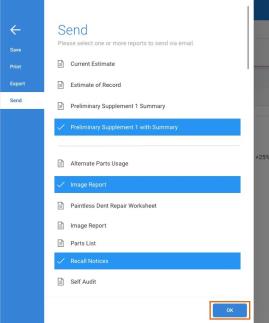
|
Send Email Details 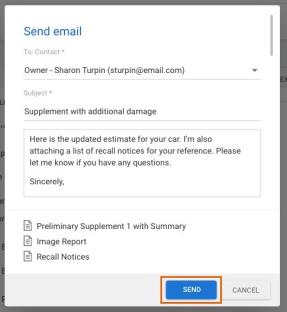
|
Delete Workfiles from Web
Users with the "Delete workfiles" security permission can now delete select records from the workfiles view in cccone.com. The following records may be deleted:
- Manually created workfiles with or without a locked estimate.
- Assignment workfiles where an estimate has not yet been sent to the insurance company.
- New Assignment records.
- Copied Workfile records.
To delete a record from the workfiles view:
- Search for and select an item in the workfiles view.
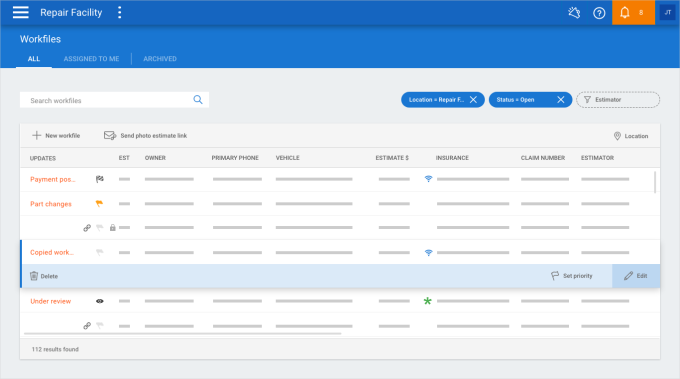
- Click the Delete button displayed on the left-hand side of the selected row.
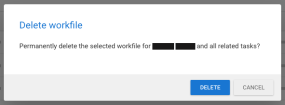
- Click Delete in the confirmation prompt.
Once deleted, the workfile and all associated tasks are permanently removed from the system. The action cannot be undone.
Note: This functionality is only available to shops without Repair Order Management features. Only users with the "Delete workfiles" permission are granted access to this function.
Workfiles Page
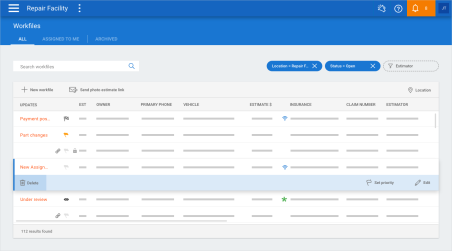
Deleting Workfile
Close and Reopen Workfiles
The ability to close and reopen workfiles is now available on cccone.com. Users with the “Close open workfiles” and the “Reopen a closed workfile” permissions have access to close and reopen workfiles.
Note: This functionality is not yet available to shops enabled with Repair Order Management features.
To close a workfile in cccone.com:
- Open a workfile on cccone.com (make sure status is not already closed).
- Select the menu button in the lower left corner of the screen.
- When the workfile backstage is displayed, select Actions on the left side of the screen.
- Click on Close workfile.
- Resolve any open tasks if displayed, then click Next.
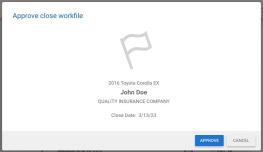
- Click Approve to confirm and complete the close action.
|
Click Close Workfile 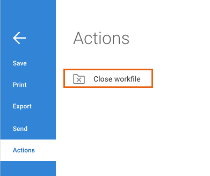
|
Click Next 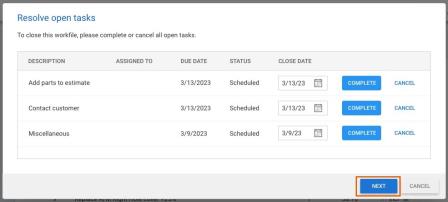
|
Click Approve
To reopen a workfile:
- Open a closed workfile on cccone.com.
- Select the menu button in the lower left corner of the screen.
- When the workfile backstage is displayed, select Actions on the left side of the screen.
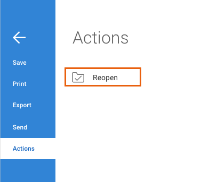
- Click on Reopen.
Select Menu Button
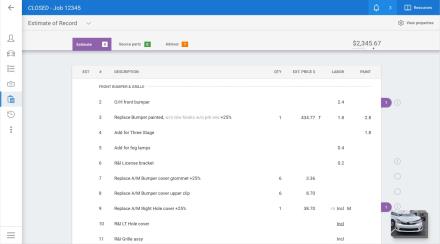
Click Reopen
Open and save Copied Workfiles
The ability to open and save copied workfiles is now available on cccone.com. Only users with the “Create and edit workfiles” permission can open and save changes to copied workfiles.
To open a workfile copy in cccone.com:
- Navigate to the Workfiles page.
- Open a workfile that says Copied Workfile in the updates column.
- Make changes and Save.
Workfiles Page
Reports Dashboard - Additional reports
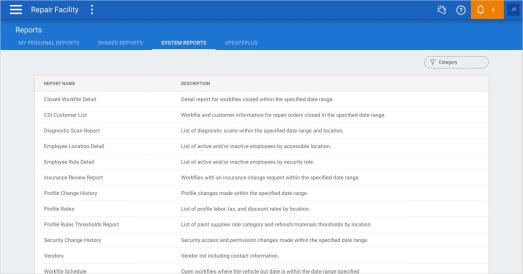
Additional reports are now available in the Reports Dashboard. Reports available this release include:
- Insurance Review Report
- Diagnostic Scan Report
- Employee Location Detail
- Employee Role Detail
- Profile Change History
- Profile Rates
- Profile Rules Thresholds Report
- Profile TL Thresholds Report
- Security Change History
Users may run existing shared or personal reports created from the list of reports above
To view Reports, follow these steps:
- Click the blue menu button in the upper left corner of the screen.
- Select Reports.
- Select one of the available reports listed.
- In the report detail screen, set filter criteria then click Apply.
Note:
- Only users with appropriate permission may run system reports on cccone.com.
- Additional reports will continue to be made available in future releases.
Reports Page
CCC ONE Desktop Release 36
New Help Landing Page
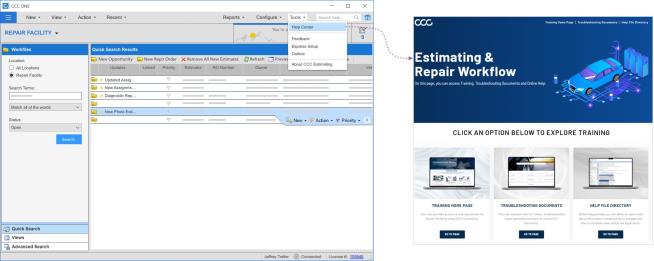
All “Help” links now point to a more intuitive and effective Help Landing Page.
To access this feature from the main screen:
- Launch the CCC ONE Desktop Application.
- Click the Tools menu, then select Help Center.
Note: Content in the Help Center is maintained by Learning Services.
Help Center Access
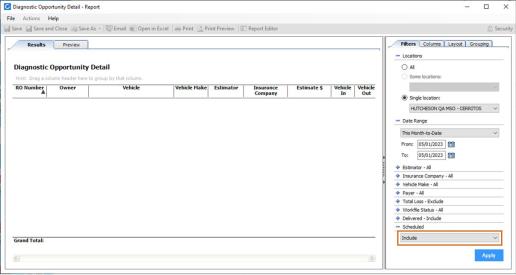
Diagnostic Reports "Scheduled" Filter
Users will now be able to access a Scheduled filter in the Diagnostic Opportunity Detail reports. This will allow users to generate a report where results filter out vehicles that are not yet on site.
To access this feature:
- Access the Reports menu and select Find Report.
- Locate Diagnostic Opportunity Detail or Diagnostic Opportunity Detail – Vehicles Delivered Reports.
- Configure Filter settings in the Report Editor panel.
- Set the Scheduled filter to Include or Exclude.
- Run Report.
Report results returned will show the following based on the Scheduled filter selection:
- Include option shows vehicles where Vehicle In date is not checked as complete (date may or may not be populated).
- Exclude option shows only vehicles where Vehicle In date is checked as complete.
Note:
- Diagnostic Opportunity Detail reports are enabled with CCC Diagnostics.
- Only users with appropriate security permission may run reports in CCC ONE.
Diagnostic Reports
Quickly find your CCC Team members. Go to http://www.cccis.com/collision-repairers/team/ and follow the screen instructions.
