What's New in CCC ONE® Estimating for March 2023
Click here to view the What’s New release notes for CCC ONE® Estimating.
Note: The availability of the features listed below may vary based on the products licensed to your company.
CCCONE.COM - Web Estimating
Centralized OEM Invites
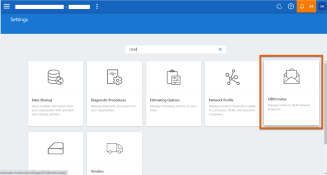
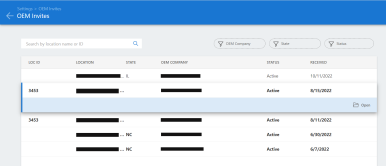
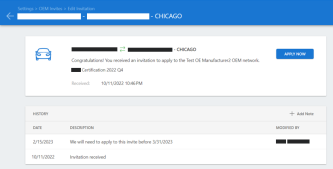
We have added a new, centralized view that allows repairer companies to manage OEM invites received to all their shop locations. From this view you can review invitations received and apply to the OEM network.
To centrally manage OEM invites, follow these steps:
- Navigate to Settings in cccone.com and select OEM Invites.
- View the list of OEM invitations.
- Click Open to view invite details.
- Select Apply to respond to the OEM invitation.
Note: Only users with the Manage program invites can access this OEM Invites.
|
Settings
|
OEM Invites
|
|
Edit Invitations
|
Updated Payer Default Value
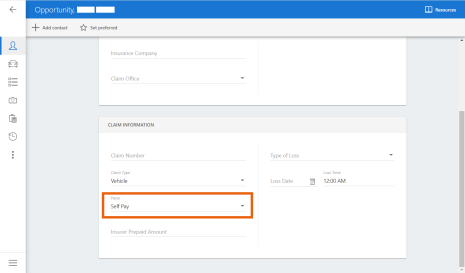
The Payer field now defaults to Self Pay when creating new manual workfiles. Previously the value defaulted to Insurance Company in this scenario.
This update applies to manual workfiles only. The Payer value on assignments remains Insurance Company.
To see the new default, follow these steps:
- Navigate to the Workfiles screen in cccone.com.
- Select the action to create a new workfile.
- Select the Insurance contact on the Contacts screen.
- View the Payer field under Claim Information.
Note: Only users with Create and edit workfiles permission can create new workfiles.
Self Pay
Recall Notices (OEM)
OEM recall notices will now be displayed when a VIN is decoded for manufacturers that have the feature enabled. OEM recall notices are automatically displayed after the vehicle is added to the workfile.
To access this feature:
- Open a workfile or create a new one.
- Go to the Vehicle screen.
- Use the Add vehicle action to add a standard vehicle using the VIN.
If OEM recall notices exist, the recall notices fly-out will automatically display after the vehicle is added to the workfile. This information remains accessible on the workfile.
To access OEM recall notices after initial display:
- Open the workfile to the Vehicle screen.
- Click on the Recall notices button.
- Select Notices for this VIN from the menu.
Note: To access this feature users must have permission to edit or view workfiles. - OEM recall notices are only available for manufacturers enabled with the feature.
|
Recall Notices 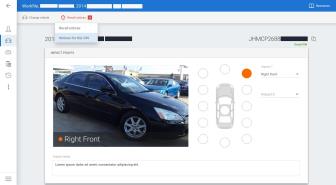
|
Vehicle Recall Notice 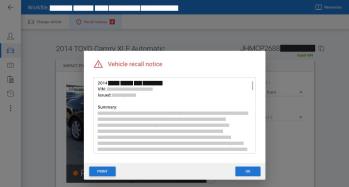
|
Recall Notices (Standard)
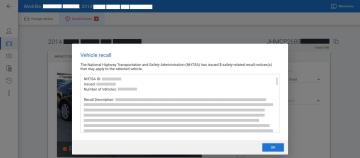
Workfiles on cccone.com now include access to recall notices from the Recall Notice database. Once a standard vehicle is added to the workfile, recall notices are available to view in the workfile Vehicle screen if they exist.
To access this feature:
- Open a workfile or create a new one.
- Go to the Vehicle screen.
- Use the Add vehicle action to add a standard vehicle (VIN not required).
- Click the Recall notices button.
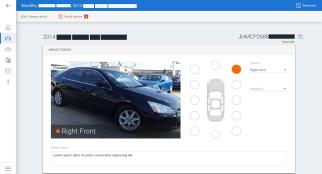
If notices exist in the recall database, the Recall notices button displays in red with a counter.
Note: To access this feature users must have permission to edit or view workfiles.
|
Recall Notices
|
Vehicle Recall Notice
|
Link to OEM Procedures
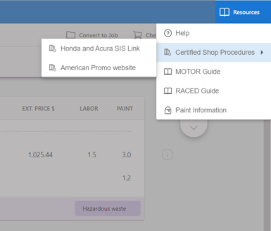
OEM procedures are now available to certified shops for select makes within the cccone.com workfile. If the shop is a certified repairer for the OEM, then they can access OEM procedures via the Resources menu in the workfile.
To view OEM procedures, follow these steps:
- Navigate to a workfile in cccone.com.
- Click on the Resources menu in the upper right-hand corner of the workfile.
- Select Certified Shop Procedures from the menu.
Note: Only users with Create and edit workfiles or Search and view (read-only) workfiles permissions may open a workfile and access OEM procedures.
Add Owner from Customer Database
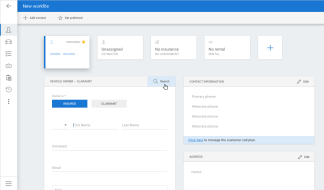
Web now allows users to search for and retrieve customer and vehicle information from previous workfiles. To access, go to the Contacts tab of the workfile. This feature helps users to quickly and easily access information from previous repairs and estimates.
To add a previous customer to a new workfile in cccone.com:
- From the workfile screen, select New workfile or New opportunity.
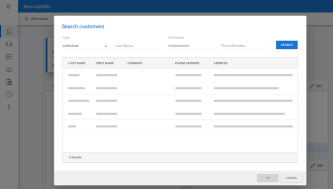
- In the Contacts tab, click on the Search button near the vehicle owner name fields.
- Search for the customer by name or phone number.
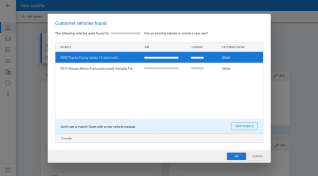
- Select a customer from the results displayed and click OK.
- Select an associated vehicle or click the action to create a new one.
- Once completed, customer and vehicle information is automatically populated on the workfile.
Note: This action is only available on workfiles without a locked estimate.
| New Workfile
|
Search Customers
|
|
Customer Vehicle Found
|
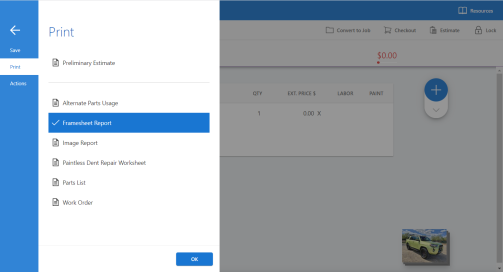
Additional Workfile Reports
Users now have the ability to view or print the following reports on ccccone.com:
- Framesheet Report
- Image Report
- Paintless Dent Repair Worksheet
- Work Order
To view or print additional reports, follow these steps:
- Open a workfile on cccone.com.
- Click the menu button in the lower left corner.
- Select Print.
- Select the report you want to print and click OK.
Towing Worksheet
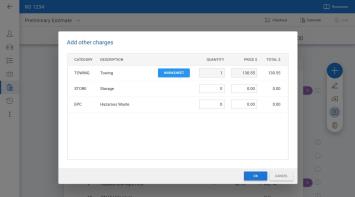
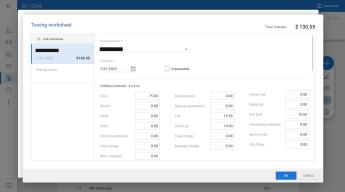
The towing worksheet is now available in workfiles on cccone.com. The towing worksheet allows you to input information and a detailed cost breakdown of tow charges. The total sum of charges from the worksheet is then added to the estimate as a towing line under Other Charges.
To use the towing worksheet:
- Open a workfile on cccone.com.
- Go to the Estimate screen.
- Click on the dropdown below the blue + button.
- Select the Other Charges option.
- On the Towing row, click the Worksheet button.
- Input tow vendor, tow date, and applicable charges then click OK.
After you click OK in the “Add other charges” screen, the towing charge is added to the estimate. To edit the towing charge or add another tow worksheet, select the Other Charges option again and click the Worksheet button. You can add up to three (3) towing worksheets to the workfile.
Please note, the shop must have at least one (1) active tow vendor configured in Settings when creating a new towing worksheet from cccone.com. The tow vendor field in the worksheet is populated with active tow vendors defined in Settings > Vendors.
No changes have been made to towing worksheet functionality in CCC ONE Desktop. On the cccone.com workfile users can edit charge details for towing worksheets created in CCC ONE Desktop. However, editing vendor information is limited.
|
Add Other Charges
|
Towing Worksheet
|
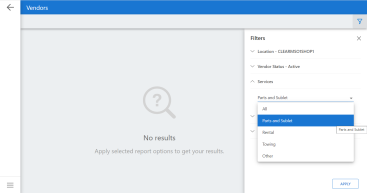
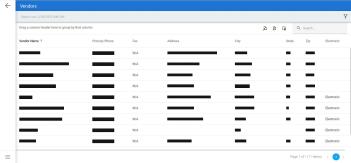
Reports Dashboard
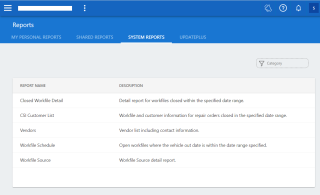
The Reports Dashboard is now available. Users with appropriate permission may run CCC ONE system reports on cccone.com. Please note, reports will be made available in phases. Reports available this release include:
- Closed Workfile Detail
- CSI Customer List
- Vendors
- Workfile Schedule
- Workfile Source
Users may run existing shared or personal reports created from the list of reports above. However, saving new shared or personal reports is not yet available. This functionality will be made available in a future release.
To view Reports, follow these steps:
- Click the blue menu button in the upper left corner of the screen.
- Select Reports.
- Select one of the available reports listed.
- In the report detail screen, set filter criteria then click Apply.
When report results are displayed, the filter panel is automatically hidden. Click the filter icon in the upper right side of the toolbar to show the panel again. Update filter selections and click Apply to run the report again.
After report results are displayed, you can sort and group data by available columns. In the upper right corner of the report results you’ll find action buttons for selecting columns to show and exporting report detail as PDF or Excel.
| Reports
|
Filter Vendors
|
|
Vendors
|
Export to Secure Share
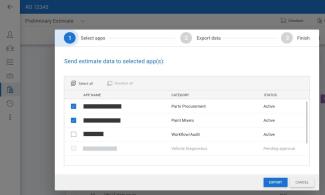
Shops utilizing Secure Share can now initiate a manual export to Secure Share from the cccone.com workfile. With Secure Share, shops can connect to participating third-party apps and securely share estimate data through the cloud.
To export to Secure Share:
- Open a workfile on cccone.com.
- Select the menu button in the bottom left corner of the screen.
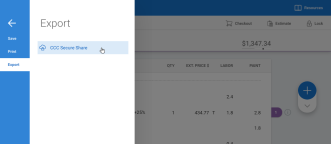
- Click Export in the backstage menu.
- Click CCC Secure Share.
- Select the app(s) you want to use, then click Export.
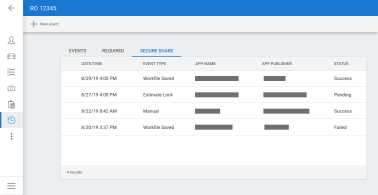
As data is exported through Secure Share the activity is logged to workfile event history. This activity is now visible in the cccone.com workfile on the Events screen.
To view Secure Share events:
- Open a workfile on cccone.com.
- Click the Events button in the bar on the left-hand side of the screen.
- In the Events screen, click the Secure Share tab.
| Send Estimate Data to Selected App
|
Secure Share
|
| Export
|
CCC ONE Desktop
Report Enhancement: Diagnostic Opportunity Detail
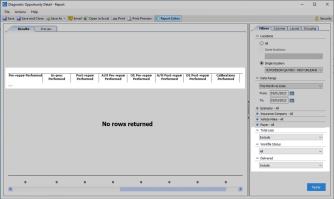
Both the Diagnostic Opportunity Detail report and the Diagnostic Opportunity Detail - Vehicles Delivered report have been updated.
We added the following filters:
- Total Loss
- RO/Workfile Status
- Delivered
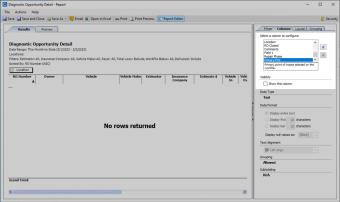
We added Primary POI as an available column. The column is hidden by default but can be set to show in report results. And finally, we renamed the "scan" columns for clarity by replacing the word "scan" with "performed." For example, the column previously labeled "Pre-repair Scan" is now displayed as "Pre-repair Performed."
To access this feature:
- Select Find Report in the Reports menu.
- Select Estimating reports.
- Select one of the Diagnostic Opportunity Detail reports.
|
Results
|
Column
|
CCC Mobile RF
Mobile Push Notifications for Tasks for iPhone and Android
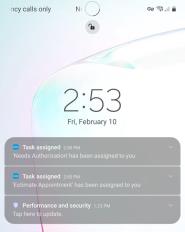
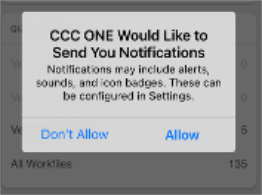
RF Mobile users now can receive push notifications for tasks assigned to them. When the app is updated, users will be prompted to register for notifications in the app. If the user allows notifications from the app, then notifications will be triggered when a task is:
- Assigned
- Updated
- Canceled
- Completed
- Re-opened
Clicking on a task notification will automatically open the task within the app. From there the user can view task details and update the task as needed.
| Push Notification
|
Allow Notifications
|
Quickly find your CCC Team members. Go to http://www.cccis.com/collision-repairers/team/ and follow the screen instructions.
