What's New in CCC ONE® Estimating for February 2023
Click here to view the What’s New release notes for CCC ONE® Estimating.
Note: The availability of the features listed below may vary based on the products licensed to your company.
CCCONE.COM - Web Estimating
What's New Notifications
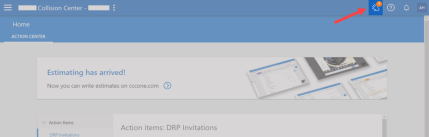
We updated the header of cccone.com to include a new notification button that allows users to see news and announcements published by CCC.
To view what’s new notifications on cccone.com, follow these steps:
- Navigate to cccone.com.
- Click on the new megaphone icon in the home page header.
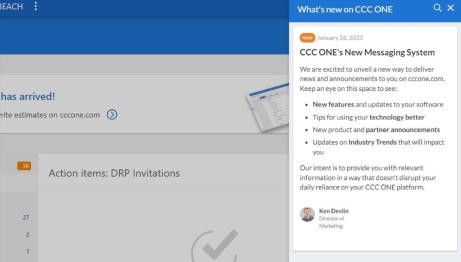
After clicking the button, you'll see the What's new on CCC ONE panel slide out from the right side of the screen.
Settings: Other Charges
Other charges settings for both the repair facility and insurance companies can now be configured on cccone.com. Other charges for insurance are now managed at the insurance company level. You no longer have to update multiple claim office profiles to apply your changes. Additionally, warnings have been introduced to let you know if any the charge categories are not being used in a corresponding rate profile.
To mange other charges:
- Go to Settings on cccone.com.
- Select either Repair Facility or Insurance Companies.
- If updating Insurance Companies, then select a carrier from the list.
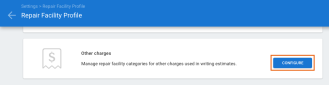
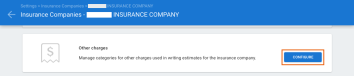
- Scroll to Other Charges settings and click Configure.
Once your changes are saved, profiles used in writing the estimate are automatically updated with the latest configured details.
Note: Users must have Edit repair facility profile permission to edit other charges for repair facilities.
Note: Users must have Edit claim office profile permission to edit other charges for insurance companies.
|
Repair Facility Profile Settings - Other Charges
|
Insurance Companies Profile Settings - Other Charges
|
|
Edit Other Charges Settings 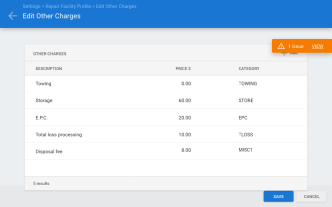
|
Edit other charge - Popup 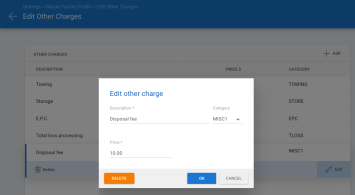
|
Settings: Estimating Rules
Estimating rules settings are now configurable on cccone.com. Manage both repair facility and insurance company rules for parts terminology, refinish and materials, reports, and other miscellaneous rules.
Rules are now configured at the insurance company level. You no longer have to update multiple claim office profiles to apply your changes. Also, you now have the option to use repair facility rules by default. When Use repair facility rules as default is enabled, insurance specific rules will only be used when a rule profile is defined for the insurance company.
To manage estimating rules:
- Go to Settings on cccone.com.
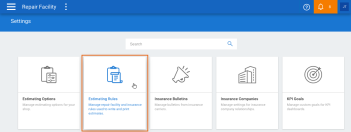
- Select Estimating Rules.
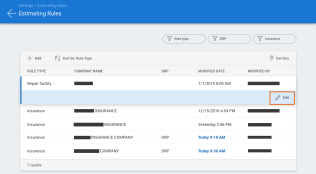
- To edit repair facility rules, select the Repair Facility row and click Edit.
- To edit insurance rules, select an Insurance Company row and click Edit.
You can also access Estimating Rules from the Repair Facility Profile or Insurance Companies settings screens.
Note: Users must have Edit repair facility profile permission to edit other charges for repair facilities. Users must have Edit claim office profile permission to edit other charges for insurance companies.
|
Repair Facility Profile Settings - Estimating Rules
|
Estimating Rules Section
|
|
Edit Repair Facility Rules 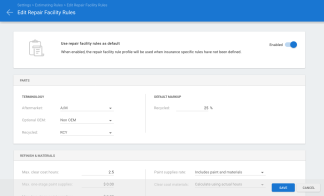
|
Edit Insurance Company Rules 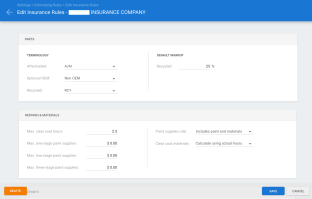
|
Settings: Part Codes
Part codes for both repair facilities and insurance companies are now configurable on cccone.com. Insurance part codes are now configured at the insurance company level. You no longer have to update multiple claim office profiles to apply your changes.
Part code configuration on cccone.com requires end-user activation. The first time a shop location accesses part code settings on cccone.com, an activation wizard is displayed. Activation walks the user through converting their part code data for centralized management.
To manage part codes:
- Go to Settings on cccone.com.
- Select Part Codes.
- Complete the activation wizard.
- When activation completes, a list of companies with part codes defined is displayed.
- To edit repair facility part codes, select the Repair Facility row and click Edit.
- To edit insurance part codes, select an insurance company row and click Edit.
You can also access Part Codes from the Repair Facility Profile or Insurance Companies settings screens.
Note: Users must have Edit repair facility profile permission to edit other charges for repair facilities.
Note: Users must have Edit claim office profile permission to edit other charges for insurance companies.
|
Settings - Part Codes 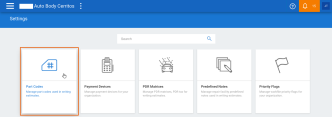
|
Select Edit 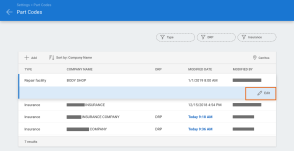
|
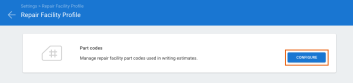
Repair Facility Profile Settings - Part Codes
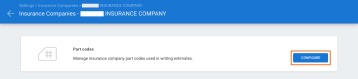
Insurance Companies Profile Settings - Part Codes
|
Edit Part Codes 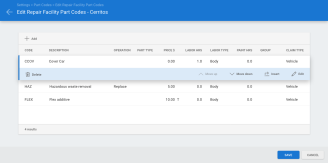
|
Add Part Code 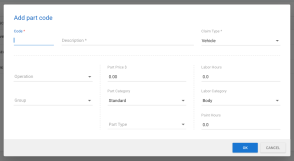
|
Settings: PDR Rate Profiles
Rate profiles for paintless dent repair (PDR) can now be managed on cccone.com. You can add and edit PDR rate profiles for both repair facility locations and insurance companies.
To manage PDR rate profiles:
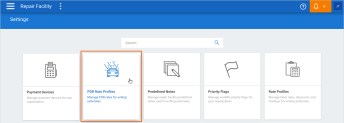
- Go to Settings on cccone.com.
- Select PDR Rate Profiles.
- Select either an existing Repair Facility or Insurance Rate Profile to Edit, or
- Click Add to create a new PDR rate profile.
You can also access PDR Rate Profiles from the Repair Facility Profile or Insurance Companies settings screens.
Note: Users must have either Edit repair facility profile or Edit repairer profile permission in order to configure PDR Rate Profiles.
Settings - PDR Rate Profiles
|
Repair Facility Profile Settings - PDR Rates 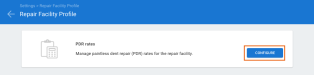
|
Insurance Companies Profile Settings - PDR Rates 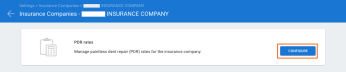
|
|
Edit PDR Rates 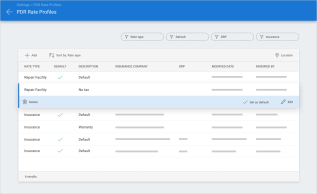
|
Add PDR Rates 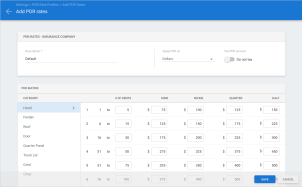
|
Settings: Claim Offices
You can now centrally manage claim office information on cccone.com. Manage updates to address and other admin information, predefined events, and workfile rules on a single claim office record.
To access claim office settings:
- Go to Settings on cccone.com.
- Select Insurance Companies.
- Open an insurance company record, then click Configure under Claim Offices.
- Add or edit claim offices as desired.
Claim office information is now managed under the insurance company record. It's no longer necessary to update this information across multiple repair facility locations. Just edit the claim office record to specify which shop locations should use it.
- Select a claim office to edit.
- Click Locations.
- Add or remove repair facility locations as desired.
Locations subscribed to a claim office will automatically get the latest updates to claim office admin information, predefined events, and workfile rules in the claim office profiles used when writing estimates.
Note: Only users with Edit claim office profiles can add or edit claim offices on cccone.com.
|
Insurance Companies Profile Settings - Claim Offices 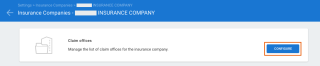
|
Select Edit Claim Office 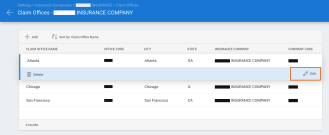
|
|
Edit Claim Offices 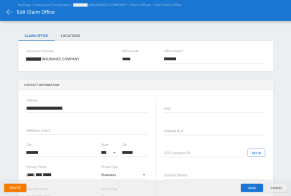
|
Add/Remove Claim Office Locations 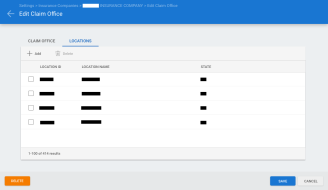
|
Settings: Repair Facility Predefined Events
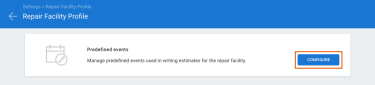
Predefined events on the repair facility profile can now be managed on cccone.com.
To edit repair facility predefined events:
- Go to Settings on cccone.com.
- Select Repair Facility Profile.
- Scroll to Predefined Events settings and click Configure.
Note: Users must have either Edit repair facility profile or Edit repairer profile permission in order to configure repair facility predefined events.
Repair Facility Profile Settings - Predefined Events
|
Select Predefined Event 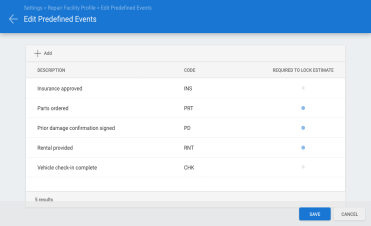
|
Edit Predefined Event 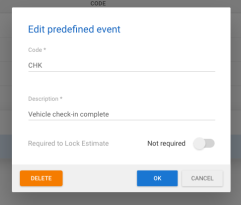
|
Diagnostic Procedures: Minimum Vehicle Year
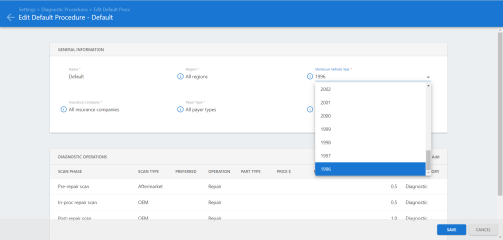
We have updated the minimum vehicle year field under diagnostic procedures to allow vehicles from 1996. Previously, the oldest vehicle year that could be selected was 2000. Only users with the new Manage diagnostic procedures and regions permission will have access to edit procedures.
To configure Diagnostic Procedures, follow these steps:
- Navigate to the Diagnostic Procedures settings in cccone.com.
- Click Edit on an existing procedure or click Add to add a Diagnostic procedure or OEM scan preference.
Minimum Vehicle Year drop-down
Diagnostic Procedures: Add Operation
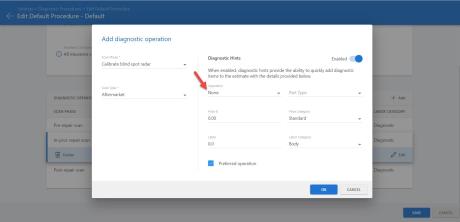
We have updated the diagnostic operation value to display None in the Add diagnostic fly-out. This change only applies to default procedures and diagnostic procedures (does not apply to OEM scan preferences). Only users with the Manage diagnostic procedures and regions permission will have access to edit procedures.
To configure Diagnostic Procedures, follow these steps:
- Navigate to the Diagnostic Procedures settings in cccone.com.
- Click Edit on an existing procedure or click Add to add a Diagnostic procedure.
Diagnostic Operation
Lock Estimate
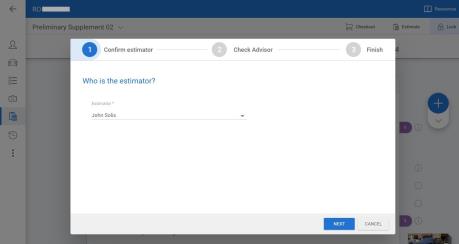
There is now the ability to lock both estimates and supplements creating an Estimate of Record or Supplement of Record respectively.
Also, if the workfile is a DRP or Open Shop assignment, locking an estimate or supplement will automatically send it to the insurance company along with any associated attachments.
To lock an estimate on cccone.com:
- Open a workfile with a Preliminary Estimate or Supplement.
- On the Estimate screen, click the Lock button in the upper-right side of the screen.
Lock Estimate
CCC ONE Desktop
Updated Profile Rates Reports
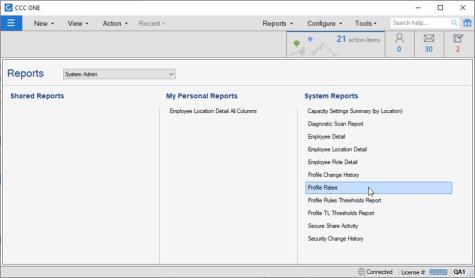
There is an update to the existing Profile Rates system report to include details about Other Charges. The report structure and layout will remain the same but will include additional information about Other Charges in the existing Rate Type, Rate Category, Rate Amount columns: The Rate Type column will list “Misc” for Other Charges, the Rate Category column will list Other Charges’ respective description, and the Rate Amount will list the respective Other Charges Price amount.
To access this feature:
- RF Desktop
- Reports
- Find Report
- Profile Rate (System Report)
Select Profile Rates
Profile Rules Thresholds Report
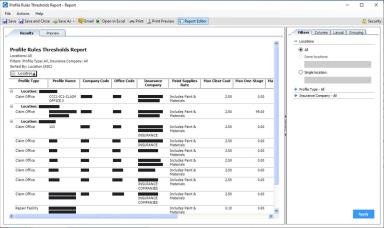
The Profile Rules Thresholds Report will provide users with details pertaining to Refinish. It will include details about the Paint Supplies Rate Category and Refinish/Materials Threshold.
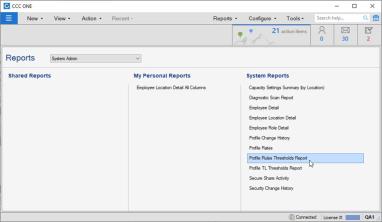
To access this feature:
- RF Desktop
- Reports
- Find Report
- Profile Rules Threshold Report (System Report)
Select Profile Rues Threshold Report
Profile Rues Threshold Report
Total Loss Thresholds Report
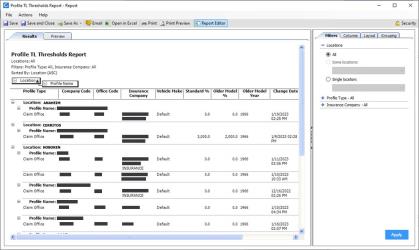
The Total Loss Thresholds report will include details about vehicle make, standard % for the vehicle make, old model % for the vehicle make, and older model year for the vehicle make.
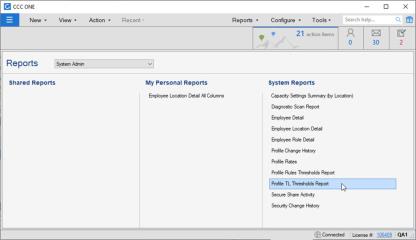
To access this feature:
- RF Desktop
- Reports
- Find Report
- Profile TL Threshold Report (System Report)
Select Profile TL Thresholds Report
Profile TL Thresholds Report
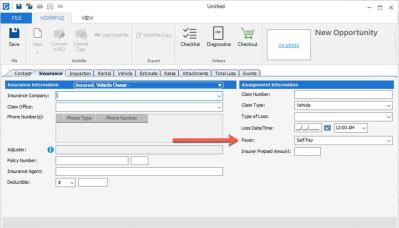
Updated Payer Default Value
The Payer field on the workfile Insurance Tab now defaults to Self Pay when creating new manual workfiles. Previously, the value defaulted to Insurance Company.
To access this feature:
- Create a new workfile.
- Click on the Insurance Tab.
- Payer value defaults to Self Pay.
Notes:
- Payer defaults to Self Pay when creating new workfiles manually.
- Payer type on assignments received from insurance will continue to be Insurance Company.
- Workfiles merged with an assignment will automatically update Payer to Insurance Company.
- User must update Payer before locking the estimate if using send to insurance on lock feature (i.e., manual workfile externalized when estimate is locked).
Insurance Tab - Payer
Sales % Added to Profit Analysis
The Profit Analysis view in the RO Performance tab now includes a new column, titled “Sales%.” This column displays the sales amount, for a given account, as it relates to the Total RO Sales $. Amount is displayed as a percentage. The column is also available on the Profit Analysis printable report.
To access this feature:
- Create or open a repair order with estimate lines
- Click on the Performance Tab
- Select the Profit Analysis view
To access the printed report:
- Click Print or Print Preview in the toolbar of the Profit Analysis view.
Notes:
- This feature is available to CCC ONE Estimating users with Repair Workflow.
- User must be able to view or edit workfiles to access the Performance tab on a repair order workfile.
|
Performance Tab 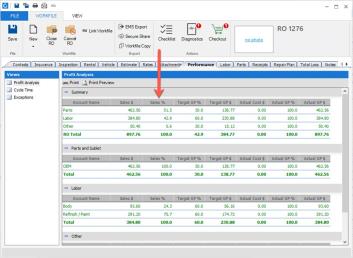
|
Performance - Profit Analysis 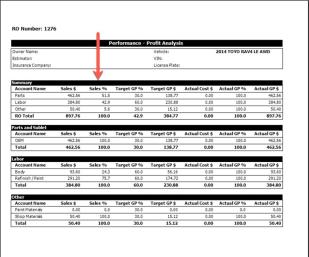
|
Quickly find your CCC Team members. Go to http://www.cccis.com/collision-repairers/team/ and follow the screen instructions.
