Maintaining Tax Rates
This section describes how to search, edit, add, copy, delete, and export tax rate profiles which can be managed by selecting the Maintain Tax Rates link.
To Search Tax Rates
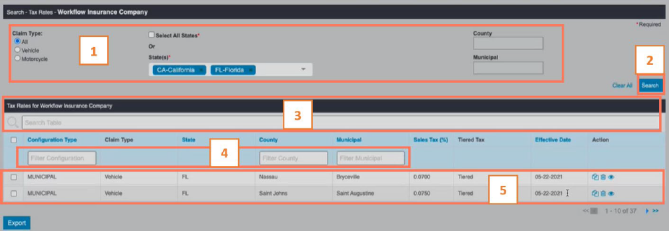
- Enter the search criteria using the radio buttons and fields to show results for the tax rate by:
- Claim Type - Vehicle, Motorcycle, or All
- Select All States - Selected will include all states or deselect to include specific states in the State(s) field (Required if State(s) not selected)
- State(s) - Search by a single or multiple states (Required if Select All States not selected)
- County - Search by a single county based on the state selected
- Municipal - Select municipality based on the state and county selected
- Select Search to show the tax rates that match the search criteria selected. The Search results rates will appear below.
Note: Select Clear All to clear all search fields.
- Enter search criteria to filter the search results.
- Filter results further by Configuration Type, County, or Municipal.
- The search result tax rates will appear below.
To Add Tax Rates
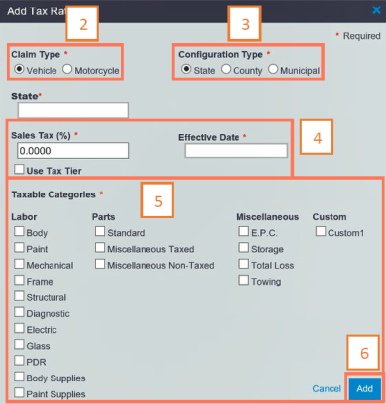
- Click the Add Tax Rates button. The Add Tax Rates window opens.
- Select a Claim Type using the radio buttons.
- Select a Configuration Type, then specify the configuration type in the field that appears. This process can be completed for each configuration type.
- Enter the Sales Tax percentage and the Effective Date in the appropriate fields. To enter a tiered tax rate, select the Use Tax Tier checkbox then enter a Bottom $, Rate %, and Surcharge $ in the available fields.
Note: A maximum of 4 tax tiers can be added. Each Bottom $ must have a higher dollar value than the one listed above in the list.
- Select the Taxable Categories checkboxes to determine which categories to have the sales tax applied.
- Click Add when finished. A message will appear indicating that the rates for the associated claim type and range have been added.
Note: A notification will appear if an existing tax configuration exists which has a different effective date. If so select Confirm to create this new configuration.
To Edit Tax Rates
- Select the Edit icon
 from the tax rates search results, for the tax rate you would like to edit. The Edit Rates window opens.
 - Change the Sales Tax percentage and the Effective Date in the appropriate fields as desired. Also, if desired, enter or change the tiered tax rate, select the Use Tax Tier checkbox then enter a Bottom $, Rate %, and Surcharge $ in the available fields. Note: A maximum of 4 tax tiers can be added. Each Bottom $ must have a higher dollar value than the one listed above in the list.
Note: The Claim type, Configuration Type, state, county, municipal detail cannot be edited.
- Click Save to make the changes. A message appears indicating that the rates have been successfully saved.
To Copy Tax Rates
- Select the Copy icon
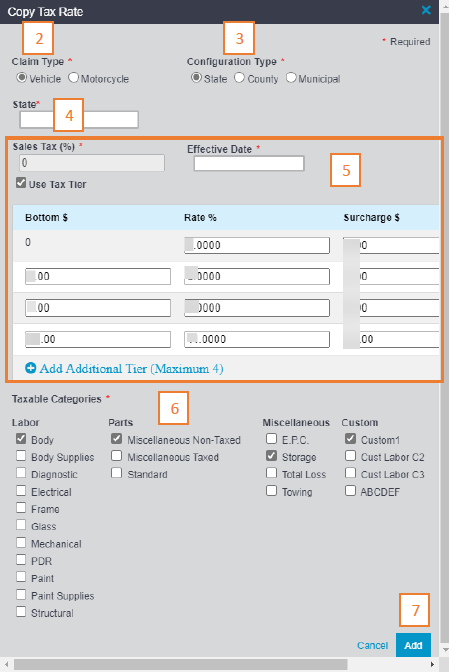
 from an individual tax rates search results, for the tax rate you would like to copy. The Copy Rates window opens.
 - Select a Claim Type using the radio buttons.
- Select a Configuration Type and then specify it in the fields that appear. This process can be completed for each range type.
- Select the State from the droplist.
- Enter the Sales Tax % in the field, select an Effective Date, and select the taxable category(s). To enter a tiered tax rate, select the Use Tax Tier checkbox then enter a Bottom $, Rate %, and Surcharge $ in the available fields. A maximum of 4 tax tiers can be added. Each Bottom $ must have a higher dollar value than the one listed above in the list.
- Select the Taxable Categories checkboxes to determine which categories to have the sales tax applied.
Note: A notification will appear if an existing tax configuration exists which has a different effective date. Select Confirm to create this new configuration.
- Click Add to save the changes.
To Delete Tax Rates
There are two methods for deleting Tax Rate profiles. This section will review each method.
Method 1- Delete Individual Tax Rate Profiles
Use this method when you want to delete a single tax rate or a few rates.
- Select the Delete icon
 from the tax rates search results, for the tax rate that you would like to delete.
 - Click Confirm to permanently delete the tax rate file.
Method 2 - Batch Delete Rates
Use Delete as part of your process for updating tax rates when you need to make changes to more than a few tax rate profiles within a State.
We recommend following the process shown here to ensure that files have consistent numbering and that no files are missed when you make updates.

Note: You can batch delete a few or all files. If you import new files to replace the deleted files, the numbering will change.
To Batch Delete Tax Rate Files
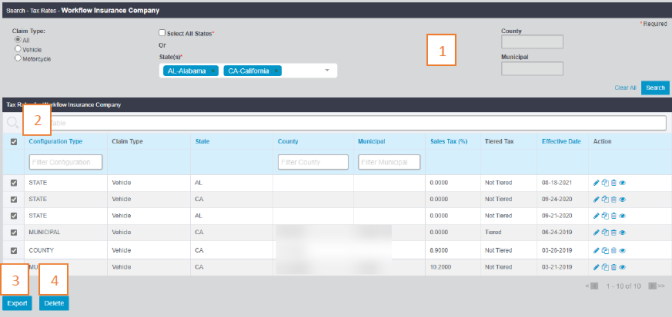
- Search for the tax rate profiles you want to batch delete. Recommended - Search and process by State.
- Use the check box at the upper left to select all or place a check in desired files to select. The batch Delete button displays. Recommended - Select all files.
- Click Export to save a backup of the files to batch delete. Recommended - Export all files.
- Click Delete to remove selected files. You will be prompted to confirm the deletion.
- Optional - If batch deleting in order to replace with edited files, make desired edits on the exported spreadsheet.
- Optional - If replacing files, import updated spreadsheet.
To Export Rates
- Select the Export icon
 from the tax rates search results, for the tax rates that you would like to export.
 - Select the exported file from your File Explorer Downloads folder. The .xls file will open.
