Subscription
You can choose to have a report automatically execute at a specified day and time. Your subscriptions are available in the Subscriptions area where they can be managed using the Action options (e.g., Unsubscribe, Change Frequency).
To create a subscription, follow these steps to save a view once the dashboard has been configured and filtered:
-
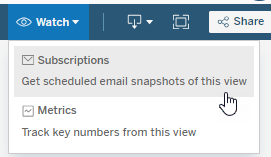
Click Watch, then Subscriptions from the dropdown, the Subscribe window opens.
-
Select what you want included (e.g., This View, Entire Workbook). Select the Don’t send if view is empty checkbox, if desired.
-
Select a Format (e.g., Image, PDF).
-
Enter a name for the subscription in the Subject field.
-
Enter an optional note in the Message field.
-
Select a time for the subscription to trigger in the Scheduled dropdown (e.g., Monday morning).
-
Click Subscribe.
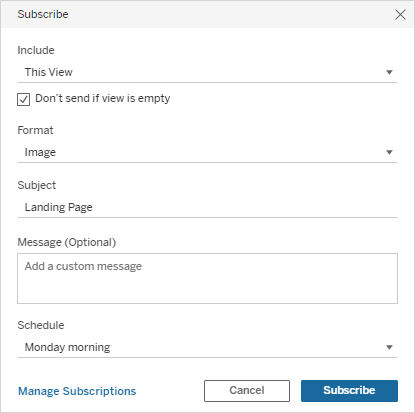
Note: Click Manage Subscriptions to view and manage all your subscriptions.
